

Open Dental’s latest version 25.1 has been released as stable! Read on to learn more about some of the version highlights, including a few highly requested features from users like you!

TECH TIP: Once you’ve updated your database to 25.1, access the 25.1 manual by using the ? from any window in Open Dental.
- Appointment Module Changes
- Family Module Changes
- Account Module Changes
- Chart Module Changes
- Manage Module Changes
- Fee Tool Enhancements
- Message-to-Pay Enhancements
Appointments Module
New Permission for Blockouts
A new permission, Blockouts flagged as NoSched or DisableCopyPaste, has been added. This allows you to restrict which users can can add, edit, copy/cut/paste, or delete flagged blockouts.
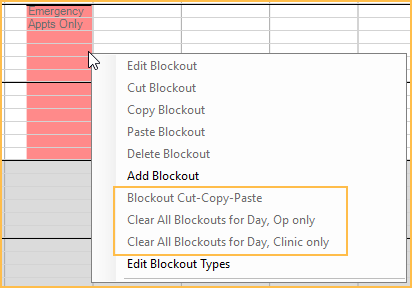
An audit trail entry is added when a flagged Blockout is modified. This permission only controls flagged blockouts. The Blockouts permission still controls users’ ability to edit other blockouts. Users with both permissions can edit any blockout.
Family Module
Insurance History Allows Two Dates Per Category
Two dates can now be entered for Insurance History categories. This allows you to track frequency limitations more accurately for work done outside the office.
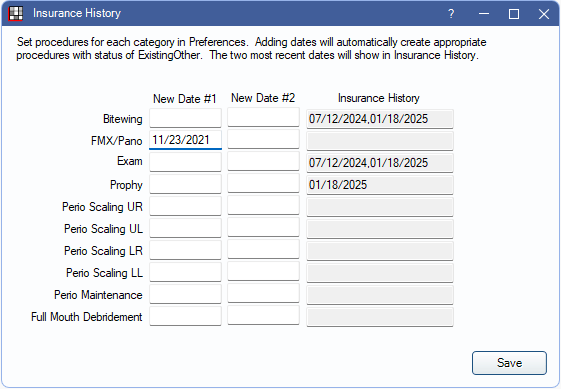
An Existing Other (EO) procedure will be created for the patient upon entering dates. The procedure used for a category is determined by the Default Code set in the Insurance History preference. Editing the date on the automatically created EO procedure will update the date in Insurance History.
Account Module
Pay Plan Unlock Permission
There is a new permission, Pay Plan Unlock, to allow users to unlock a locked Payment Plan. Previously, this was under the Pay Plan Edit permission.

Audit Trail Log for Pay Plan Completed Amount
If the Payment Plan Tx Completed Amount is changed, either manually on the Payment Plan or due to changes to attached procedures/adjustments, there is a log in the Audit Trail for the PayPlanEdit permission with details on the change.

Chart Module
Group Notes Enhancements
Group Notes are now easier to create. Previously, only procedures completed on the same day with the same treating provider could be attached to a group note. Now, this is less restrictive. Group notes can be attached to any procedure, regardless of the status, date, or provider.
Procedures can now also be easily added or removed from the Group Note. The interface has been updated slightly to accommodate these changes.

Manage Module
Time Card Totals for Period
The Time Card has been changed to show totals in a horizontal grid below the clock events. This area displays the total hours worked for the pay period along with totals for corresponding columns.

You can also now switch between “Decimal Format” and “Colon Format” instead of seeing both.
Fee Tools Enhancements
The layout of the Fee Tools window has been completely overhauled and simplified. Now you’ll just see the options for the tool you have selected.

TECH TIP: While this was only a visual change, in Version 24.4, Effective Dates were introduced for Fee Schedules. See our Version 24.4 blog for more information.
Message-to-Pay Enhancements
Options to Send Message-To-Pay when Creating Statements
There is a new window, Statement Send Setup, that allows you to decide if your office wants to automate sending a Message-to-Pay link when creating statements. This change caused some big changes when it comes to Billing Defaults. Some options that were previously in Billing Defaults have been moved to the new window.

The new Statement Send Setup window can be accessed from Billing by clicking the Templates button. It can also be accessed from Setup, Account, Statement Send Setup. Billing Defaults can also be accessed from Billing by clicking Defaults.
Other Changes
- New preference for Auto split ERAs with CARC denial codes listed above. This works with the Don’t auto-process claims w/ these CARCs preference to make it easier to process paid codes and resubmit denied codes.
- The user associated with a provider signature on a Sheet can be easily changed.
- Changes to Insurance Estimate or Allowed Amount overrides on a procedure are now detailed in the Audit Trail.
- New option to mark medications as hidden in the master list.
- New bridge for Overjet, an AI program that assists with diagnosis.
Canada Changes
View Canadian Attachment History
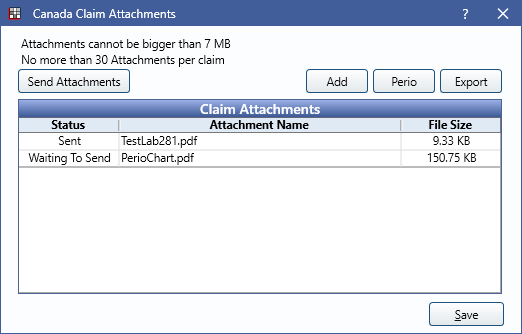
Canada users can now view electronic claim attachment history by right-clicking a claim from the Account Module and selecting Manage Canada Attachments.
Document Titles for Claim Responses Saved to Imaging Module
The description for PDFs of claim responses that are auto saved to the Imaging Module has been updated to indicate the response type (e.g., Claim Rejection Pri, Claim Ack Sec, Claim EOB Pri, etc.)

We’re excited to share these new features with you! If you have any questions or want to learn more, reach out to Open Dental Support.